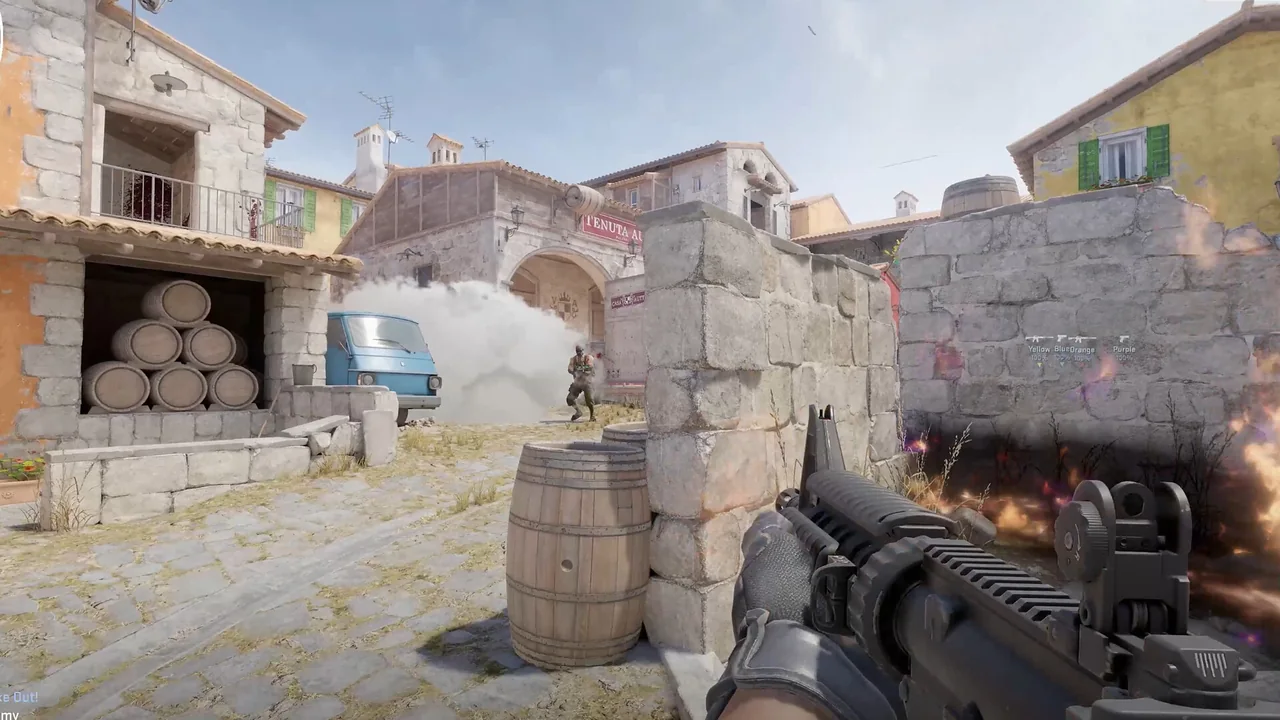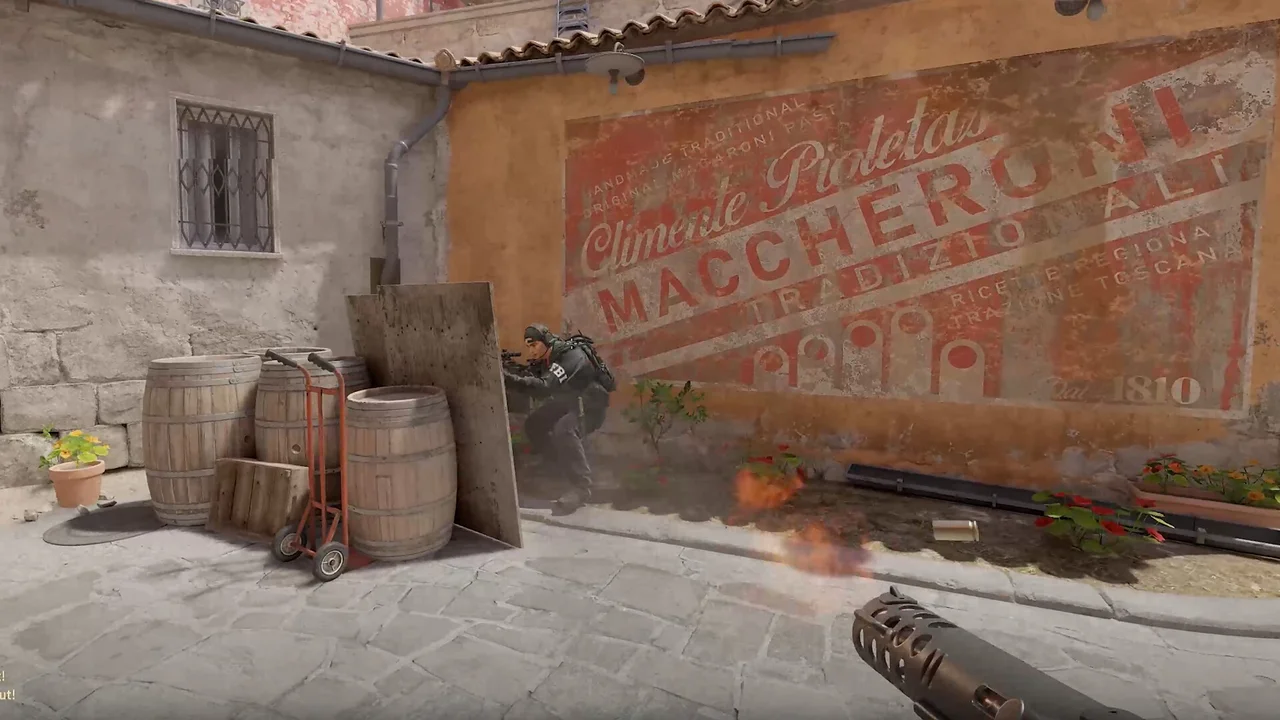
Widgets are useful when each one has a clear home. NoName CS2 lists a weapon HUD, bomb timer, keybinds widget and a skins widget with live apply. These panels support configuration and objective awareness, while boxes, health, weapons and radar carry the main match information.
The goal is not to fit the largest possible number of panels on screen. It is to make each panel readable in a glance and keep the center clear. A fixed layout also makes screenshots and support conversations easier because everyone can identify the same region.
Give objective timing a dedicated position
The bomb timer should sit where it can be checked quickly without covering the crosshair, player markers or C4 label. Place related bomb information close enough to be read together. If dropped weapon and grenade labels also occupy that edge, shorten their max distance or move the timer to a less crowded corner.
Use consistent type size and contrast. A timer that is bright but too small is still difficult to scan. A large timer over the center of the scene creates a different problem. Test the chosen position at the game's normal resolution rather than relying on a menu preview alone.
| Area | Current listing |
|---|---|
| Misc | Weapon HUD, bomb timer |
| Misc | Keybinds widget, skins widget (live apply) |
| Visuals | Dropped weapons, grenades, bomb / C4 |
| Visuals | Spectators window |
| Radar | Range, size |
Use the weapon HUD as context
The weapon HUD can provide current weapon context while ESP weapon labels describe other players or dropped items. Keep those meanings visually separate. One can stay in a stable panel, while world labels remain attached to their objects.
If the HUD and per-player weapon names use the same color and size, they can blend together near the screen edge. A small difference in placement or typography makes the stable widget feel distinct from the moving ESP layer.
Keep keybind and skins controls out of the combat layer
The keybinds widget is a diagnostic surface. It helps confirm the active inputs for aimbot, triggerbot or misc functions. Put it somewhere visible during setup, then reduce its prominence once the profile is understood.
The skins widget supports live apply according to the current feature list. Treat it as a configuration panel, not objective information. Make one live change at a time and keep it away from the bomb timer. This gives the timer and weapon HUD stable screen space when the match becomes busy.
Continue with the right NoName guide
For the next part of the setup, read the ESP and radar layout guide, the CS2 misc feature guide. Each page covers one group of controls so you can compare settings without turning every option on at once.
Current plans and the final feature list remain on the NoName CS2 store page. Check that listing before purchase because game updates and product availability can change.