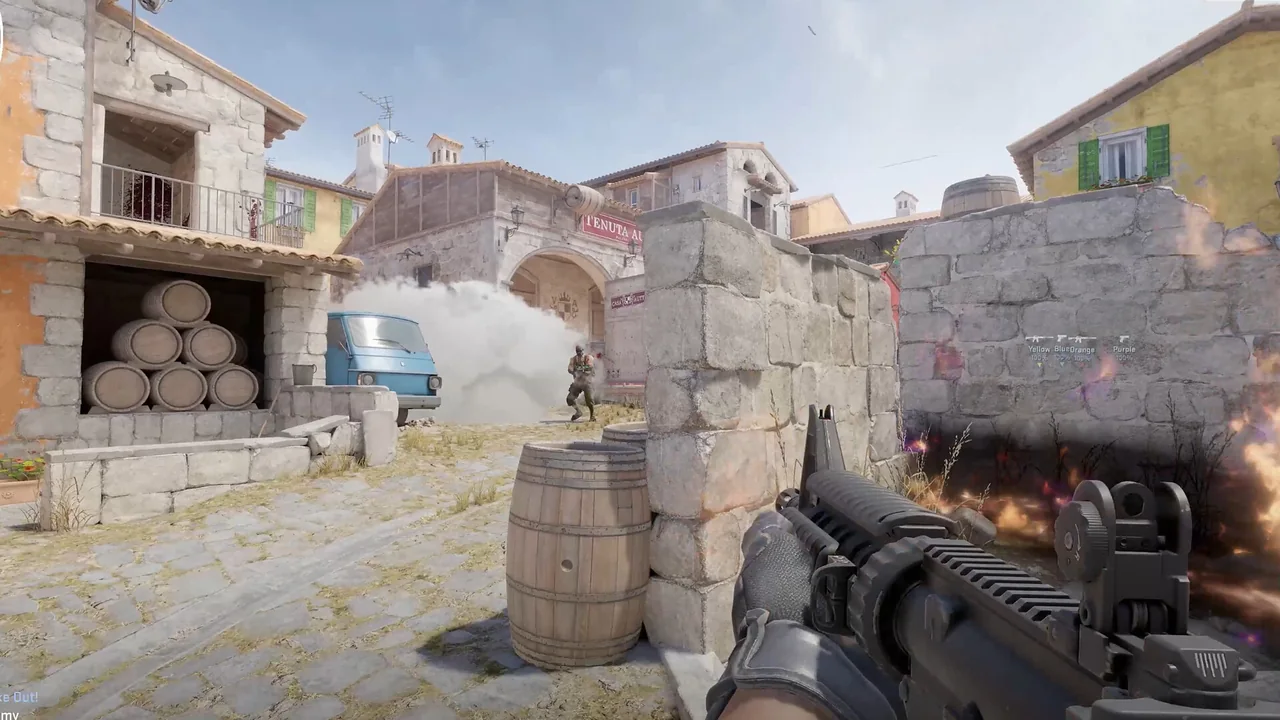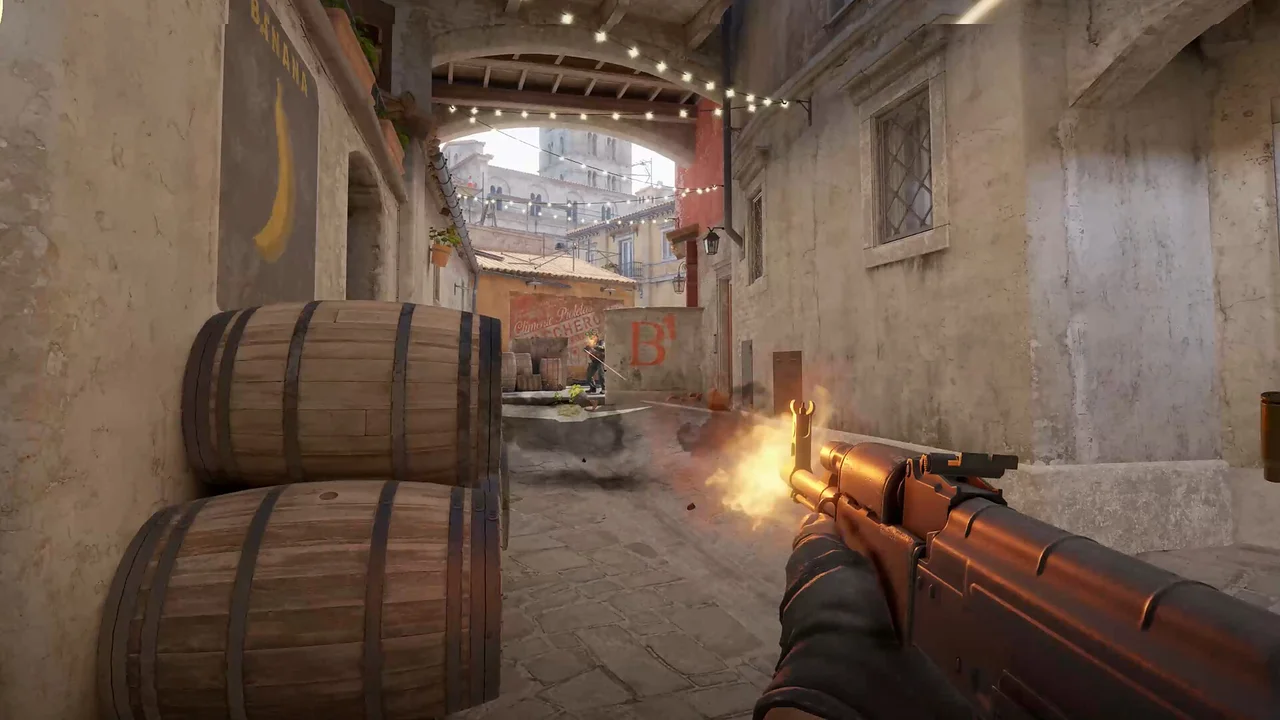
The CS2 miscellaneous menu combines several controls that affect different parts of play. Bhop concerns repeated movement input, auto pistol concerns firing input, no flash changes a visibility effect, and the FOV changer changes the view. Radar hack and third person belong to information and camera presentation. They should be tested as separate groups.
A simple rule keeps this menu manageable: enable one category, confirm its key or value, and record the baseline before moving to the next. This prevents a camera change from being mistaken for a movement issue or an input feature from being blamed on a visual setting.
Separate movement from weapon input
Bhop and auto pistol are listed together in the product's misc section, but their behavior is not interchangeable. Test bhop with the standard movement and jump controls first. Test auto pistol with the intended weapon input separately. A keybinds widget can help show when a configured input is active.
Keep any aimbot or triggerbot keys out of the first pass. If movement, firing and aim activation all share a test, it becomes impossible to attribute timing to one control. Add the aim configuration only after each misc input has a known result.
| Area | Current listing |
|---|---|
| Misc | Bhop, auto pistol, no flash |
| Misc | FOV changer + value |
| Misc | Radar hack, third person |
| Misc | Weapon HUD, bomb timer |
| Misc | Keybinds widget, skins widget (live apply) |
Review visibility and camera controls
No flash belongs to the visibility group, while the FOV changer has its own value. FOV here refers to the view setting and should not be confused with the aimbot FOV that defines a targeting area. Use distinct names in saved notes or profiles so the two values are not mixed up.
Third person changes the camera perspective. Review the crosshair, snaplines and player labels after switching perspective because their placement may feel different from the normal camera. A clean layout should remain readable without stacking widgets over the character model.
Keep radar hack and HUD information organized
Radar hack is listed separately from the adjustable radar widget. One is a misc feature name and the other has explicit range and size controls. Document both settings so a change in the radar display is not automatically attributed to the wrong option.
The weapon HUD, bomb timer, keybinds widget and skins widget can occupy their own screen regions. Reserve the center for the crosshair and player visuals, place objective timing where it is easy to scan, and keep live skin controls outside the combat information hierarchy.
Continue with the right NoName guide
For the next part of the setup, read the HUD, timer and skins widget guide, the triggerbot and input guide. Each page covers one group of controls so you can compare settings without turning every option on at once.
Current plans and the final feature list remain on the NoName CS2 store page. Check that listing before purchase because game updates and product availability can change.