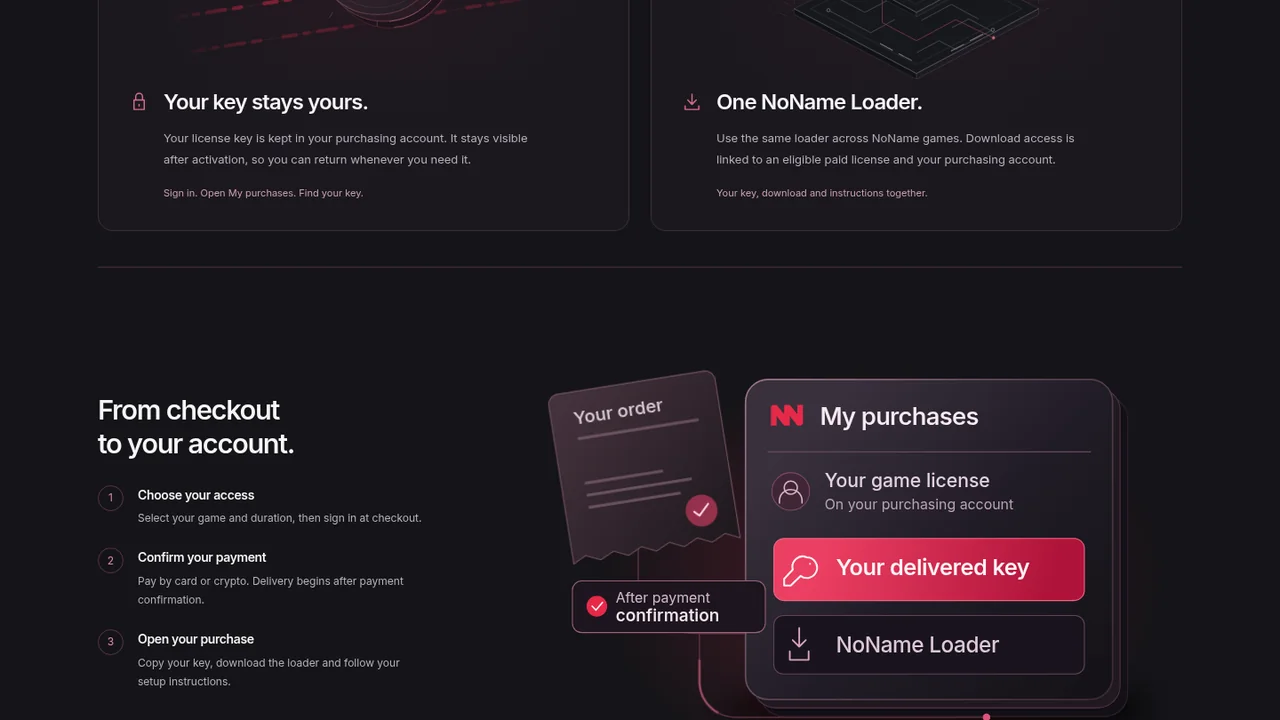
NoName checkout has four separate stages: selecting a product, creating the order, confirming payment and delivering the licence. A submitted card form or a sent crypto transfer is not the same as a confirmed order. The key becomes available after the payment system records confirmation.
The live NoName store currently presents card and crypto at checkout. Its listed crypto choices are BTC, LTC, SOL and USDT on Solana. Use only the asset, network, amount and payment instructions generated for the specific order. This guide does not publish receiving addresses because checkout details can be order-specific and should be read from the payment page.
Begin with a live product category
Open the official NoName store and choose the exact game. The current live products are Fortnite, Apex Legends, Dead by Daylight, CS2, Deadlock and OGFN Retrac. Each category has its own durations and prices, so check the product title before adding it to the cart.
Sign in before completing the purchase and use an account you can access later. The order, key and download permission are attached to the purchasing account. A second account will not display the first account's purchase simply because both belong to the same person. The current NoName catalog guide lists the verified plans and prices as of September 25, 2026.
Compare card and crypto checkout
| Checkout detail | Card | Crypto |
|---|---|---|
| Information used | Complete the secure card form shown at checkout. | Select an available asset and follow the generated payment instructions. |
| Amount | Review the final GBP total before submission. | Send the exact amount shown for that order. |
| Confirmation | Wait for the card payment result. | Wait for the required network confirmation. |
| Delivery trigger | Confirmed payment | Confirmed payment |
The common step is confirmation. Do not assume that leaving the checkout page cancels a pending order or that seeing an invoice means the key has already been issued. Keep the order reference until delivery is complete.
Follow the crypto quote exactly
The store says crypto orders wait for network confirmation. At checkout, verify the selected asset, its displayed network, the destination and every digit of the requested amount before sending. Do not substitute a different token or network because the name looks similar, and do not reuse details copied from an older order.
For USDT, the live store specifically identifies the Solana network. The other available labels are BTC, LTC and SOL. This article intentionally does not reproduce wallet addresses. The current checkout page is the proper source for the receiving details and exact amount tied to the invoice.
After sending, keep the transaction reference from the wallet or exchange and return to the payment status page. A broadcast transaction can remain pending while the network confirms it. Sending a second payment does not make the first one confirm faster and can create a support case.
Wait for confirmation before expecting a key
Delivery starts after payment confirmation for both card and crypto. When the order is ready, open My purchases and select the correct product. Look for the License Key section and the setup instructions associated with that order.
Automatic delivery describes what happens after the payment reaches the required state. It is not a promise that every payment method confirms instantly. Crypto timing depends on network confirmation, while a card payment can be approved, declined or left pending by its payment flow. Refresh the existing purchase record instead of creating a replacement order.
Download the shared loader from the purchase account
An eligible paid game product unlocks the official NoName Loader page. Sign in with the same account used at checkout. The page holds the current download and release information, while the purchase record holds the product-specific key and instructions.
The loader is shared across eligible NoName products, but licences remain separate. A Fortnite key does not activate Apex, and buying an HWID reset alone does not grant loader download access. Read the loader and key guide if you need to distinguish the downloaded application from the access credential.
Resolve a pending payment or missing key
First confirm that you are signed in to the account used at checkout. Then open the existing order and check whether payment is confirmed or still pending. For crypto, compare the checkout asset, network and exact amount with the completed wallet transaction. For card, use the payment result shown by checkout and your order history.
If the payment is confirmed but no key appears after a short refresh, contact NoName support with the order number and payment or transaction reference. Do not post the full licence key, account password or private wallet credentials. If payment remains unconfirmed, provide the existing invoice rather than creating another one.
Once delivery appears, copy the key from My purchases, keep it private and follow the instructions attached to that product. The key remains in the purchase details after activation, giving you one reliable place to return for the licence and official loader.